Showing posts with label Google. Show all posts

Thursday, 9 February 2017

When composing an email - autocomplete is not working for contacts in GMAIL App

Everyone is using smartphone and to access gmail, GMAIL App is a mandatory. But while composing most of us facing issue in typing the sender's email address properly. And it is bit difficult to memorize all email ids. 

To avoid that, a preconfigured feature which will automatically suggest the senders email id by typing 1 or 2 first letters of the particular email id. We will be able to pick the email id from the suggestions. It is called as Autocomplete.

But Autocomplete is not working for few Gmail App users. To resolve this, in any smart phone Go to Settings - Apps - Gmail App - Permissions - Add or Enable Contact. After that autocomplete will work for sure.

Wednesday, 1 June 2016

How to get - - - -@googlemail.com ?

Now,it is easy to get free ----@googlemail.com email address. To create that you have to do nothing.

Ha Ha Ha, Really not joking.

Of-course, you must have an email ----@gmail.com. If you own that, it means that you are owning ---@googlemail.com too.

No need for creating that separately.

Try and type your feed backs in comments.

Sunday, 21 June 2015

Chromebit - Your computer is in your pocket

Google has launched Chrombit. This will be the 4th Generation's exact invention and which is going to change the level and method of Technology in the coming years.


Chromebit is USB kind of device which works like a computer. You can turn any screen into a computer by using this Chromebit. After connecting the chromebit to your screen (Smartphone, TV, LED or LCD Screen) by using cable or by direct, you can connect the keyboard and mouse and start using your Chrome OS based Computer.

Thursday, 27 February 2014

Google - Blink HTML

Like Google's Do a barrel roll now google has various things in it. Just go google.com and search for blink HTML.

Then you will see the words HTML which is displayed in result page will started to blink.

The older trick is type in search bar as Do a barrel roll. 

Thursday, 26 September 2013

Will Chrome OS beat Windows?

Chrome Operating System is a Linux based OS, and can be loaded to Laptops, Desktops and Mobile devices. And Chrome OS is very faster which is owned by the internet giant Google.

But in Chromes OS it is impossible to edit the documents which are created on Windows platform.  And viewing the documents also is becoming a big issue on Chrome OS. To view documents which are saved can be done by after installing Chrome Office Viewer. To overcome this issue Google has planned to develop Quick Office which will works better like MS Office. And the another major issue is in Chrome Based System accessing network drives and files is impossible. We can only access Google drives.

And installing Photoshop, Auto CAD and etc is not possible in Chrome OS. We can only install the applications which are available in Google Play as of right now. And Chrome OS is a free operating system.
Some default features in Chrome OS is we can perform Remote Desktop over internet (with Hangout).

So as of right now there is no chance to beat Windows by Chrome.


Thursday, 18 October 2012

How to enable Gmail preview?

In Gmail you can view your Emails similar to microsft outlook in pane view. Actually it will splits the previewed mail into pane and mail conversation separately. The pane can be customized as vertical split or horizontal split. You can enable this option at,
 Settings - Labs - Preview Pane - Enable.


And also another great feature called Message Sneak Peak which will preview the email message by right clicking on the mail conversation list.


For any doubts you can post your question. Our team will answer for your questions shortly

Sunday, 14 October 2012

How to send free SMS from Gmail?

Now Google introduces free SMS which you can send from your Gmail account to mobile.
 1.Login to your Gmail Account.
2.On the Chat search box which is below your status indicator type the number to which you want to send free SMS.
3.Now click Send option.
4.A new small screen will appear which will prompt you to enter the contact name, and country of the phone number belongs and save it.
5.Now as a normal chat you will get the chat box on the right corner side where you can type and send free SMS.
6.The contact will also be listed on the chat list which will give you a easy (click contact name and type message and hit enter) future access.


You are allowed to send only 50 SMS. And to send a SMS the count (1) will be reduced from 50 to 0. Once you reached 0 you cant send SMS untill 24hours. After 24 hours you will be given 1point again. By receiving an SMS or from a reply will increase 5 points to your count. For more details you can check Google's detail page here.


For any doubts you can post your question. Our team will answer for your questions shortly

Wednesday, 3 October 2012

How to export contacts from Gmail?

In Gmail you can export your contacts and save to use that addresses in offline. For that you need to sign in to your gmail account.

Now click on to Contact menu which is shown as a drop-down menu.


Then you will be directed to a new screen where you can select what are the contacts you are going to export from your gmail account. After selecting the particular contact groups or all contacts click on to more
then export.


Now again a new screen will pop up. Here you can select which contact you would like to export and in which format you would like to export. After selecting those click on to Export. Now your contacts from Gmail account is exported and you can save that on to your local disc.


For any doubts you can post your question. Our team will answer for your questions shortly.


Saturday, 29 September 2012

Google Adsense Approval / Disapproval

Google adsense is an monetizing program from Google. This offers a service to display ads in websites,
blogs and portals and also offers money to the publishers.
Publishers are the owner of the website, blog or portals. Advertisers pays to Google for displaying their
ads. Google will share a part of amount to the publishers.

But to get approval from Google adsense, the website should meet some essential criteria.

1.It should not include adult content.
2.You should have more numbers of posts in your site.
3.The content of the post should be unique and it should not be copied from any other sources.
4.You must post the content in your own words.
If your site meets the above mentioned criteria then you will get approved from Google Adsense Program.

After making site like i above mentioned, You need an adsense account. Then grab the code and insert it into your site. It will take 3 or more days to display ads.

1.Once it is happened you should not click on the ads which is displayed on your website.
2.You should not copy contents from any other site and past it in your site.

If you fail to the above mentioned after the ads started to display again the ads wont appear and you will get disapproved
from Google Adsense.

Once the ads are started to display, you can earn money when someone clicks on the ads or number of impressions of the ads.
(WILL CONTINUE)


For any doubts you can post your question. Our team will answer for your questions shortly.

Wednesday, 19 September 2012

How to convert a Web Page into PDF in Mobile?

In mobile phones, if its an android enabled device then you can definitely convert the web page you are viewing into Pdf. And hence you can read that in offline or share with someone.

If you are using Dolphin Browser in your phone you can enable a add on called WebtoPdf. Then resrtart your browser. After this you will be able to convert the pages to PDF files. In other way you can find lot of apps in Google Playstore (Google Market) which will do the process of converting files.

Or else you can install a dedicated software to perform the conversion which is available on the internet.

For any doubts you can post your question. Our team will answer for your questions shortly.

Friday, 14 September 2012

Google Trend

In google trend you can compare two or more searched keywords and get a result as shown in the figure. It will give you a comparison chart. You can filter the result particularly for regions and years also.


For an example i have made a comparison between Google, Yahoo, Bing and Ask and the result is shown above. You can compare whatever you like. This will be very helpful to find out which is the most searched one and particularly for bloggers it will be very helpful to increase their blog's traffic for finding a best keyword or to find a best topic according to the market potential.

You can access this site at www.google.com/trends

Friday, 31 August 2012

Google Translate

Now you can translate the language using google into your own regional language. For this you need to go to www.translate.google.com.
 
The first thing is you need to select the source language you wish to change and the output language. These options are available as from and to as shown in the figure above. Type in or past the content you wish to change in the box. The translated output will be shown in the right side.

Wednesday, 29 August 2012

Adding signature to your GMail Account

You can add signature to your gmail account. By this feature you need not to type your name and number or contact information every time.

As in the figure shown above click on to the settings then you will get a new screen which includes general, labels, inbox like that. Under the General Tab you can see the signature subtitle. Now Click on the yes radio button and type in whatever you want as your signature. And finaly click on save changes. Thus you can add signature to your gmail account.

Monday, 20 February 2012

Google Image search by uploading image

I have recently came to know that Google has the facility of searching photos and images by using (uploading) images. To search image in google search you have to navigate to www.google.com in your browser. Then select images. Then the page will be reloaded again.

Now you can upload the an image by clicking on the camera inside of the search box or by typing URL of an image.You can also provide description about the image. Finally hit enter. Then you will get a page like this not this same one. You will get results according to the image you have selected.

Friday, 17 February 2012

iGoogle - A best homepage

First you need to open a web browser. After that browse for www.google.com. Then you can see link like igoogle at the left bottom of the google page. You have to click on that. Now it will ask for your own customized theme, location and intrest. 
After you entered the details you will get a new igoogle page. You can make that page as your homepage  or create a bookmark and access whenever you wanted. Otherwise you can directly access the page by clicking http://www.google.co.in/ig?hl=en#.

Wednesday, 15 February 2012

How to upload a video on Youtube


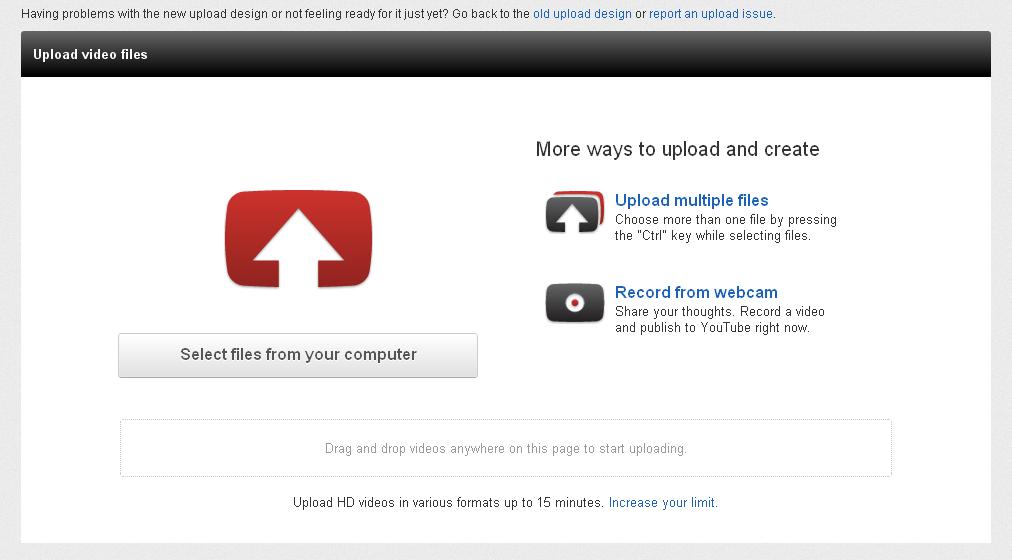
To upload a video on YouTube first you need to have a YouTube account or Google account or sign up for a new account. After you get an account you must login to YouTube's website. After you logged in you can see Browse, Movies and Upload option nearby to the search box inside YouTube's website. By clicking the upload button a screen will appear as i showed. 

There you will have options for uploading single or multiple files from your computer. Finally , Don't forget to save uploaded video and enter tags and descriptions about that video.

Friday, 10 February 2012

Google Earth

Google Earth is an application software which is used to view the erath in imagery, maps and 3d buildings. And we can find cities, local buisiness. 

It is a desktop application and also can be embedded with websites.

It can be downloaded from http://www.google.com/earth/index.html . But it is similar to Google Maps except 3d view.

Wednesday, 1 February 2012

Google Chrome - A brand new browser

Google Chrome is one of the best browsers in the world. It has many features and user friendly. Since Google and it's product  is a major player in internet, Google Chrome is needed for browsing.

An updated Chrome browser almost capable of performing all types of scripts (Video, Audio, Image, Games and other scripts.).

Chrome browser is very useful for bloggers.

They can add thousands of extensions for blogging and everything. And it has easy book marking  and maintenance and managing.
Here i would like discuss features and navigation about Google chrome.

Will Continue.....


Friday, 27 January 2012

How to Start Blogging in Blogger?


Step 1: Logon to www.blogger.com
Step 2: There it will ask for Email ID and Password. {You can use excising gmail account or create a new one}
Step 3: After you completed log on process you will see a new page which called as dashboard.
Step 4: There you can find a icon as Create New. By clicking that you can create a new blog.
Step 5: Name that blog, get a free theme, customize, add some posts and finally publish that.

Most Useful Google Chrome Extensions


Chrome is a product of Google. And in chrome web store you can get lakhs of add ons or extensions which are very useful.
By browsing to Google Chrome Extension  page you can avail them freely.


There are lot of categories according to users.
1. Offline E Book Reader
2. Vector Paint
3. Wordpress Editor
4. SEO
5. Ad Block
6. IE Tab
7. Online DJ Tool
8. My Browser Page
9. Alarm Clock - On & Offline
10. Tubemate
Related Posts Plugin for WordPress, Blogger...